Studio Lite Guide: Six tutorials and what each one teaches
About
OverviewStudio Lite is a simplified, mobile-friendly game development tool on Roblox that lets you build, script, and publish your own games entirely from a phone or tablet. This guide walks you through the tutorials, the editor's main tools, publishing your game, and working with friends.
What is on this page
Contents
Six tutorials and what each one teaches
Summary
Studio Lite ships with six tutorials that take you from the very basics up to writing your own scripts. Each one unlocks a badge when you finish, and completing at least one of them counts toward the age-20 college class in the Roblox game Growing Up.
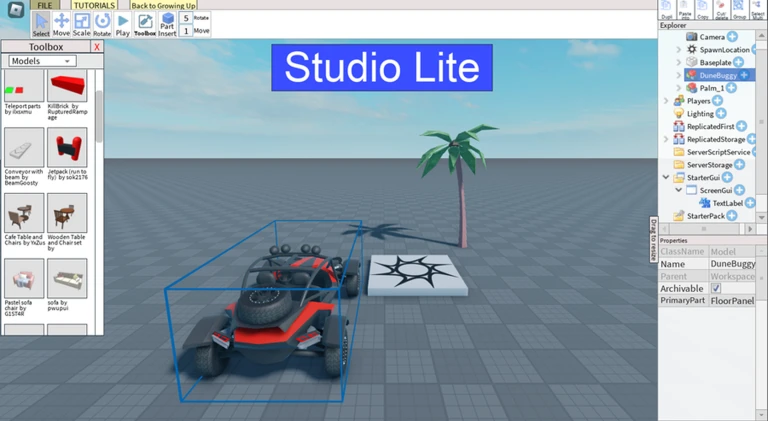
- Basics Tutorial introduces the build tools, the Explorer panel, and the Properties panel
- Build Tutorial covers inserting parts, duplicating them, grouping, saving, and test-playing
- Toolbox Tutorial shows how to pull free models, images, and sounds from the Roblox Creator Marketplace
- Script I Tutorial teaches you to find pre-built scripts and tweak them for your own game
- GUI Tutorial covers placing on-screen text and buttons that players can read and tap
- Script II Tutorial goes further into writing loops, if-conditions, a game loop, and tool actions using Roblox Lua
Editor tools worth knowing
Tips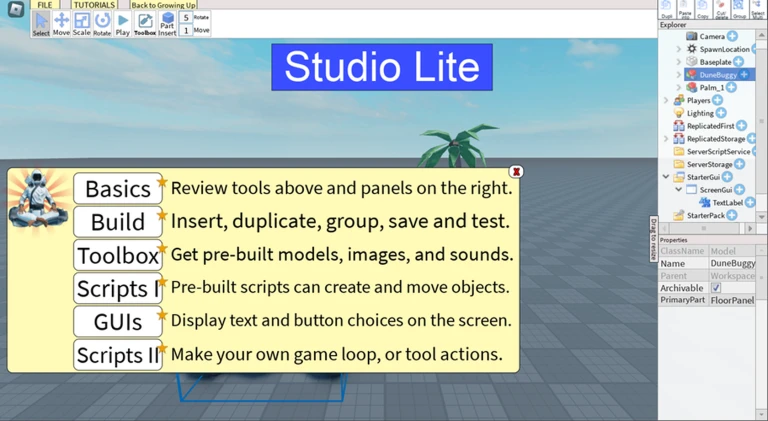
Beyond the basic build tools, Studio Lite includes a Toolbox that lets you import your own assets — images, models, and sounds. The Rig Builder creates the skeleton a character needs before it can be animated. The Animation Lite Editor then lets you shape how that character moves. The Dance Club sample file contains scripts for playing and selling emotes along with animation IDs you can study.
- Use the Toolbox to import assets you already have
- Open File > Sample > Dance Club to read working emote and animation scripts
Steps to publish your game
Step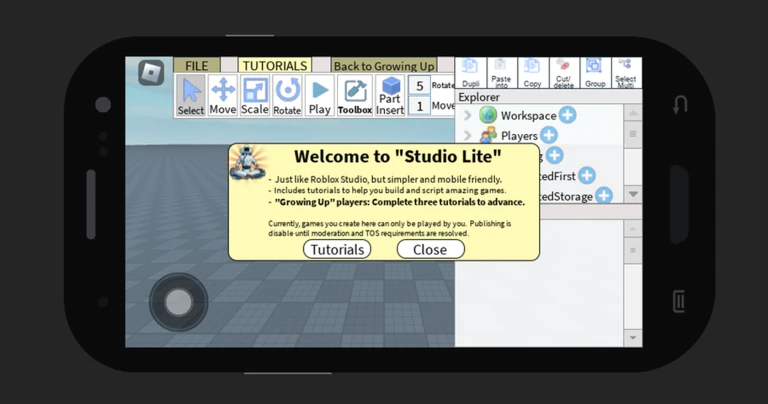
When you are ready to share your game, head to the Publish page inside Studio Lite. There are several one-time setup steps you need to complete before the publish feature turns on — each one gets a checkmark when done. Robux you earn, thumbs-up votes your game receives, and any moderation decisions are all handled exactly like any other game on Roblox, and Roblox's Terms of Service apply to everything you build.
- Complete every one-time step on the Publish page each finished step earns a checkmark
- Confirm all checkmarks the publish feature activates only after every step is ticked
- Read the Help button on the Publish page it explains each setup step in detail if you get stuck
- Join the in-game community if a step still will not clear
Building with friends using Collaboration Lite
CheckStudio Lite includes a Share feature called Collaboration Lite. You can give a friend access to your whole game or just a portion of it. The age requirement is firm — only friends who are 13 or older can be invited.
- Confirm each friend you want to invite is 13 or older before sending a share
- Decide whether to share the whole project or only specific parts
Keeping your game within Roblox rules
Warn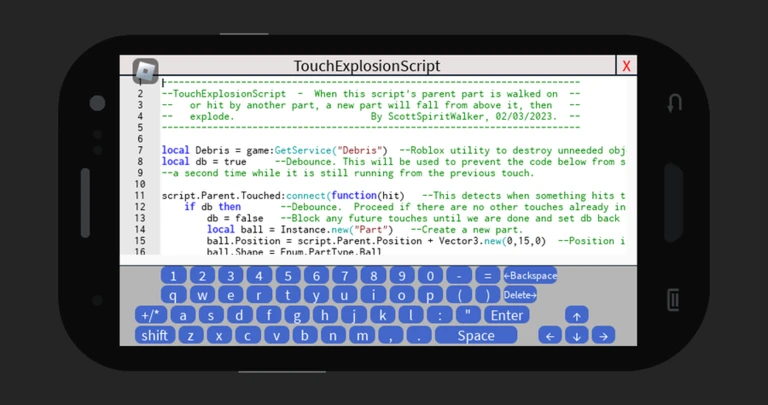
Moderation of your published game works the same way it does for any other Roblox game. Robux earned, thumbs-up votes, and moderation are all handled like any other game on Roblox. Abide by Roblox's Terms of Service.
Growing your game's audience
TipsStudio Lite includes a Vote feature that lets you ask players directly whether they enjoyed a recent update. Thumbs-up votes on Roblox are earned the same way they are for any other game.
- Use the Vote feature to ask players what they thought of updates
- Thumbs-up votes carry the same weight here as on any other Roblox game
Glossary
Glossary- Explorer panel
- A panel introduced in the Basics Tutorial that lists objects in your game.
- Properties panel
- A panel introduced in the Basics Tutorial for editing the settings of a selected object.
- Toolbox
- The section of Studio Lite where you can search the Roblox Creator Marketplace for free models, images, and sounds, and also import your own assets.
- Rig Builder
- A tool included in Studio Lite that adds a bone structure to a character model before animation can be applied.
- Animation Lite Editor
- The editor inside Studio Lite for creating and adjusting how a rigged character moves.
- Collaboration Lite
- The Share feature that lets you invite friends aged 13 or older to edit all or part of your game with you.
- GUI
- Graphical User Interface — the on-screen text, buttons, and other elements that players see and interact with during your game.
- Roblox Lua
- The programming language used to write scripts in Studio Lite and across all of Roblox.
Common questions
FAQCan I really build and publish a game entirely from my phone?
Yes — Studio Lite is designed to be mobile friendly, so building and publishing can be done on a smartphone or tablet.
Why won't the publish feature turn on for me?
The Publish page has several one-time setup steps, and all of them need a checkmark before publishing activates. Tap the Help button on the Publish page for a walkthrough of each step, or ask in the in-game community.
Can my game actually earn Robux?
Robux earned through your Studio Lite game is handled exactly like Robux from any other Roblox game.
What age do my friends need to be to collaborate with me?
Only friends who are 13 or older can be invited through Collaboration Lite.
Game updates can change what is on this page. If you spot something, get in touch and let us know.