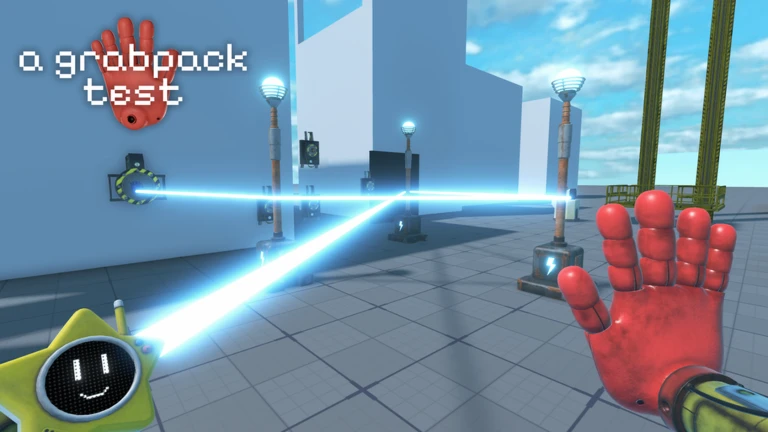
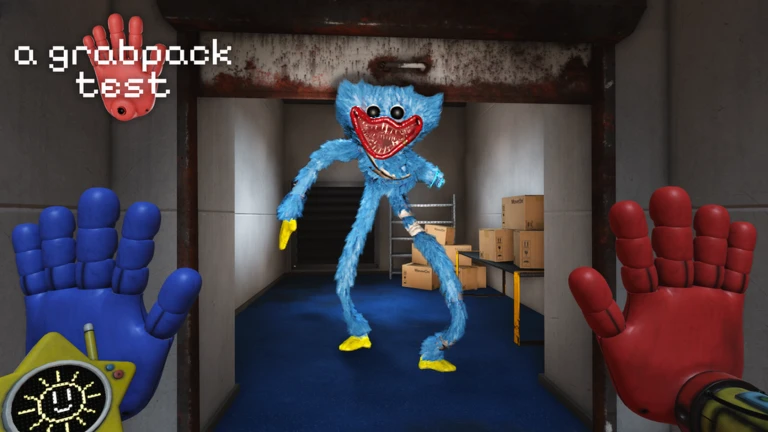
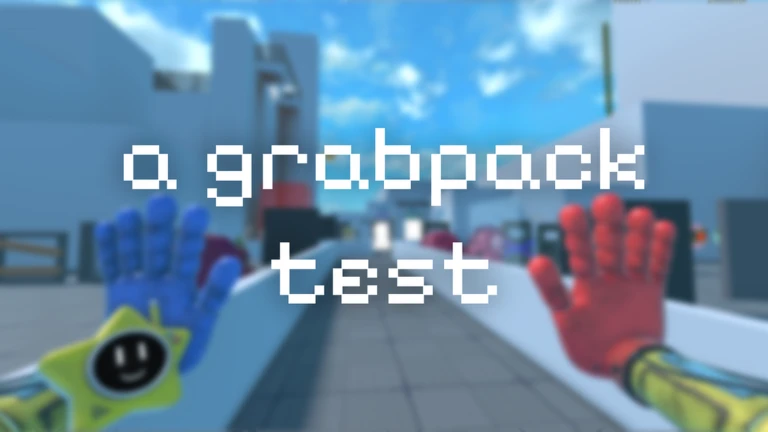
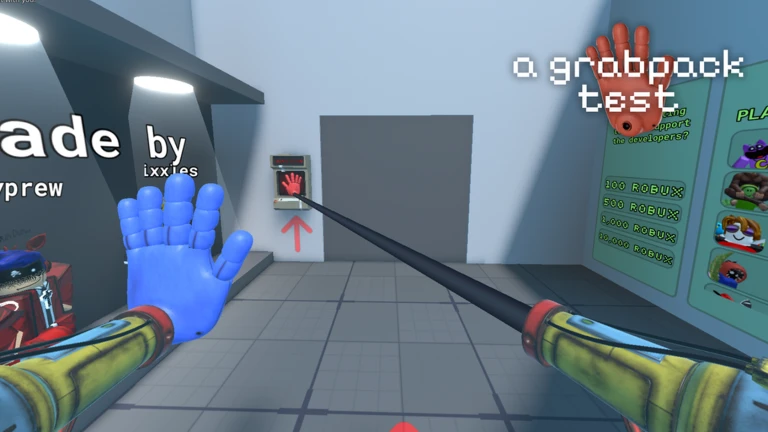
A Grabpack Test [HUGGY WUGGY] is a stage-based action game where you equip different guns and gadgets to your left and right hands and fight through maps featuring Huggy Wuggy and other characters. Each map gets harder as you go, and both keyboard-and-mouse and controller setups are fully supported. This guide covers controls, how to work through all five maps, and what to do when you get stuck.
In shortKnowing every keybind before your first run saves a lot of frustration later.
The game gives you two hands at once, and switching between them quickly is the core skill. On PC you switch hands with the Scroll wheel or number keys, then fire with left and right mouse click. On a controller, the Y button switches hands and L1 and R1 fire each side. Every other button in the list below is worth checking before you enter a map.
Switch handsPC: Scroll wheel or number keys; controller: Y button
Shoot left or rightPC: left and right mouse click; controller: L1 and R1
Hand WheelPC: Q key; opens a view of everything currently equipped
FlashlightPC: F key; controller: B button
BlacklightPC: V key
SprintPC: Shift; controller: L3 (press the left joystick in)
Crouchcontroller: R2
Pause menucontroller: Back or Select button
Unlock mousePC: T key, for when you need to click outside the game window
In shortPicking the right hand for the situation matters.
The game equips different guns and gadgets to your left and right hands. Before entering a map, open the Hand Wheel with Q (or the controller equivalent) to review what you have available.
Tips worth knowing
Use rapid-fire hands when several enemies are on screen at once.
Switch to a high-damage hand for a single tough enemy.
Some hands are built around specific stage mechanics — equip them if the stage calls for it.
Open the Hand Wheel to review all available hands.
05
What to check when a map keeps beating you
Check
In shortAlmost every wall you hit comes down to enemy patterns, hand choice, or positioning — run through all three before giving up.
If you have died on the same map several times, watch where enemies appear and when they attack. Then check your loadout, because an ineffective hand wastes every second you spend firing it. Finally, think about where you are standing.
Watched the enemy spawn order at least twice to predict the next wave
Opened the Hand Wheel and confirmed every equipped hand is useful for this map's enemies
Tried killing the strongest enemy first instead of clearing small ones
Turned the flashlight on to spot enemies before they reach you
Used sprint to keep distance instead of fighting at close range
06
Flashlight and blacklight in practice
Tips
In shortBoth lights are tools — using them at the right moment changes what you can see and react to.
The flashlight (F on PC, B on controller) lights up dark areas so you can see enemies approaching. The blacklight (V on PC) makes certain elements in a stage visible.
Tips worth knowing
Turn the flashlight on in dark areas.
Use the blacklight when the flashlight does not reveal everything in a room.
You can use the flashlight and still switch hands normally — they do not conflict.
On a controller, the B button activates the flashlight.
Glossary
Glossary
Hand
A gun or gadget equipped to your left or right hand slot, switched with the Scroll wheel, number keys, or Y button.
Hand Wheel
A menu opened with Q (or its controller equivalent) that shows every hand currently available to equip.
Flashlight
A light toggled with F on PC or B on controller that illuminates dark areas.
Blacklight
A special light activated with V on PC that makes certain stage elements visible that the flashlight does not reveal.
Sprint
High-speed movement triggered by Shift on PC or pressing L3 on a controller.
Crouch
A lower stance on controller using R2.
Yarnaby Map
A standalone map built around the Yarnaby character, separate from Maps 1 through 4, with its own badge for completion.
Common questions
FAQ
Which should I use — keyboard and mouse or a controller?
Both work fully. The game supports PC with Scroll wheel, number keys, and mouse clicks, and controller with Y, L1, R1, L3, R2, B, and Back or Select buttons.
What is the T key actually for?
Pressing T releases your mouse from the game window so you can click somewhere else on your screen. You do not need it during normal play, but it is there when you do.
Updated Sep 28, 2026
Game updates can change what is on this page. If you spot something, get in touch and let us know.