
My World — Starting your first world
About
OverviewMy World is an infinite block-building game where you can create anything you imagine using hundreds of block and furniture types. This guide walks you through starting your first world, choosing what to build with, saving your progress, and inviting friends to build alongside you.
What is on this page
Contents
Starting your first world
Step
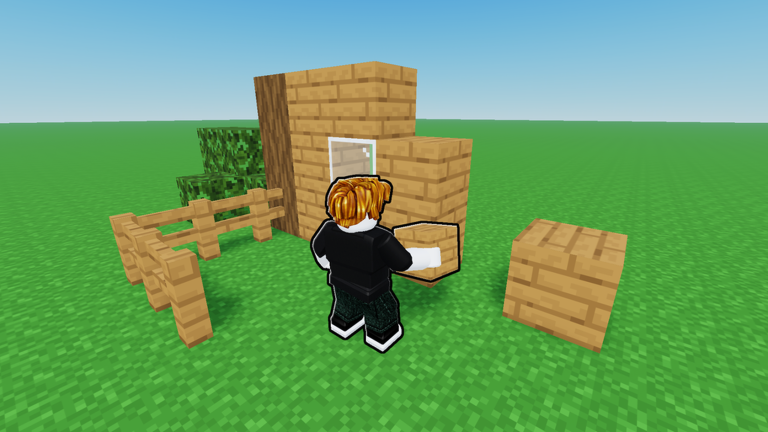
When you launch My World, a world-creation screen appears before you enter the game. Once you are inside, take a few minutes to find the placement and destruction tools and try them out.
- Create a world tap the new-world button on the creation screen to generate your space.
- Place a block select the placement tool shown on screen and tap where you want the block to land.
- Break a block switch to the destruction tool and tap any block to remove it.
- Look around on mobile, drag the screen to rotate your view and see what you are working with.
Picking blocks and furniture
TipsMy World gives you hundreds of block types and furniture packs to work with. Mixing materials and colours as you go will teach you what looks good together.
- Hold two or three block types side by side before committing to one so you can see the colour and texture difference.
- Adding furniture inside a structure makes the interior feel finished and lived-in.
- Sticking to one material family for walls and floors gives a build a clean, unified look.
Auto-save and managing multiple worlds
Check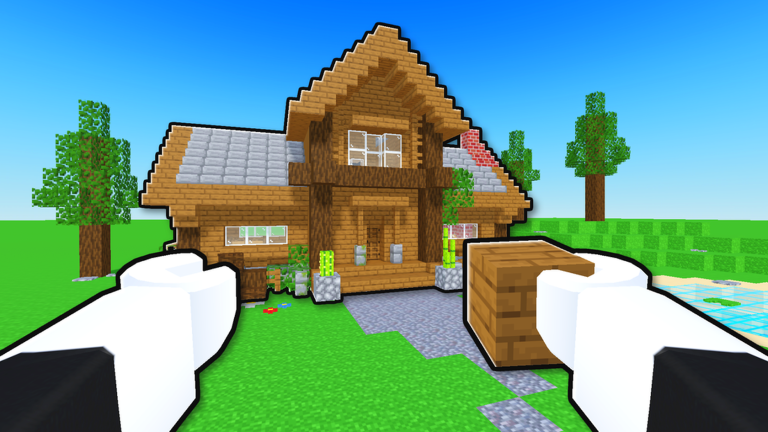
My World saves your progress without you having to do anything. You can quit mid-project and pick up exactly where you left off the next time you log in. The game also lets you maintain as many separate worlds as you like.
- Saving is automatic you never need to find a save button.
- You can create an unlimited number of worlds and keep them all.
- Work on a large build across several sessions without any risk of losing progress.
- Check your world list after restarting the game if you ever cannot find a world you made.
Building with friends
StepIf you want someone else to build in your world with you, you need to enable Creative Mode first, then share the code the game generates. Once your friend enters the code, they can join and build alongside you in real time.
- Open world settings go to the settings menu from inside your world.
- Enable Creative Mode turn on the co-op building option in the settings.
- Get your invite code the game will display a code you can share.
- Share the code send it to your friend so they can enter and join your world.
What you get without spending anything
SummaryMy World does not require any purchases to enjoy its main features. Hundreds of block types and furniture packs are available, and your worlds save whether or not you have spent anything.
- Block and furniture access hundreds of options available at no cost.
- World saves automatic and free regardless of spending.
- Number of worlds unlimited worlds can be created and kept for free.
Glossary
Glossary- World
- Your own personal building space in My World; you can create and save as many of these as you like.
- Creative Mode
- A setting that lets friends join your world and build together with you at the same time.
- Voxel
- The cube-shaped blocks that everything in My World is built from.
- Invite Code
- A code generated by the game that you share with a friend so they can enter your world.
Common questions
FAQCan I find my world again after quitting the game?
Yes — My World saves automatically, so your world is stored as soon as you make changes. If you cannot spot it immediately, open your world list and it should be there. Restarting the game can also help if the list takes a moment to load.
How do I get a friend into my world?
Open the settings menu inside your world, switch on Creative Mode, and then grab the invite code the game shows you. Send that code to your friend and they can type it in to join you.
Does My World work on mobile?
Yes — on mobile, drag the screen to look around. It runs on any device that supports the Roblox app.
Game updates can change what is on this page. If you spot something, get in touch and let us know.