Literally SPRUNKI — Making your first mix
About
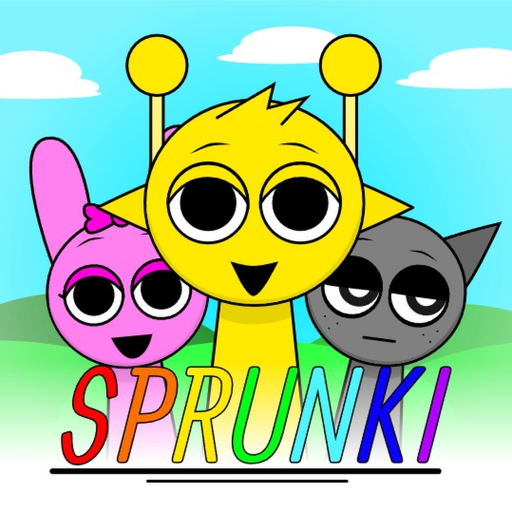
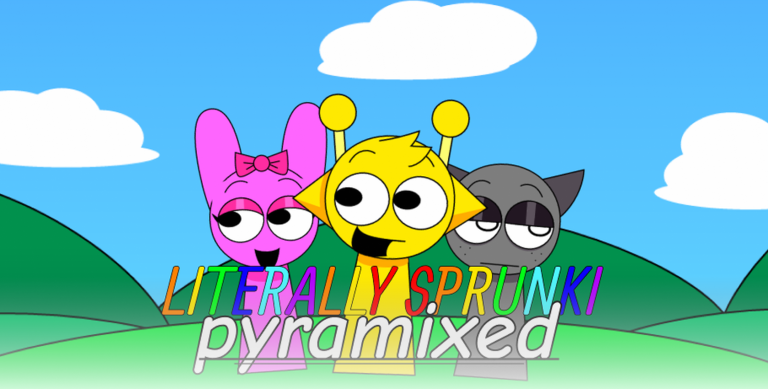
OverviewLiterally SPRUNKI is a fan-made Roblox experience inspired by the web game Sprunki, where you pick characters and tap or click on-screen elements to layer sounds into your own music mix. It runs on PC, mobile, and console. This guide walks you through making your first mix, getting better results, sharing what you create, and fixing common problems.
What is on this page
Contents
Making your first mix
Step
When you open the game, a set of characters appears on screen. Each character has its own distinct sounds, so the one you pick shapes the whole feel of your mix. From there, tapping the elements on screen layers sounds on top of each other until you have something that feels like a full track.
- Pick a character choose one from the lineup that appears when the game loads.
- Tap elements on screen sounds play and layer on top of each other.
- Add more elements tap others to keep layering sounds.
- Listen back let the mix play through so you can hear how it sits.
Getting better results from your mix
TipsThe same character can produce very different mixes depending on which elements you tap and when. Trying multiple characters is also worth doing, since each one brings a different set of sounds to work with.
- Change the order you tap elements — the layering shifts each time, so the same character can sound completely different.
- Tap an element more than once to see how repeating it affects the rhythm.
- Try running sounds from more than one character together for combinations you would not get from one character alone.
Sharing a finished mix
Step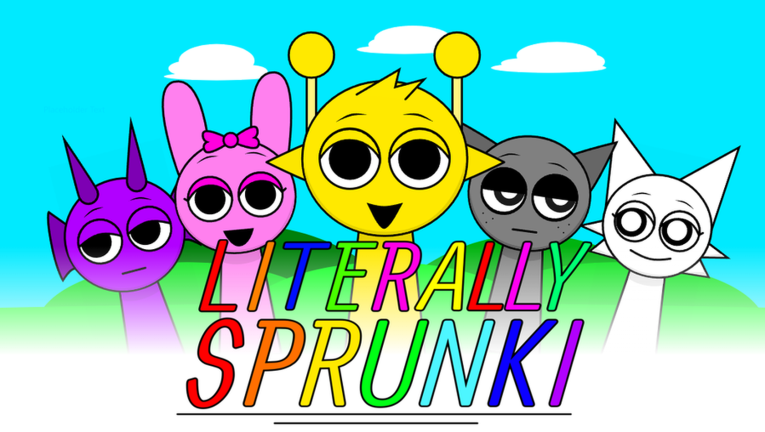
After you finish a mix, look for the share button on screen. The game will generate the information for your mix, which you can then copy and send directly to friends or paste into a social media post. Friends who play the game can hear your mix from that information.
- Find the share button it appears on screen after your mix is complete.
- Copy the mix information save or copy whatever the game generates.
- Send it to friends or post it paste the information into a chat app or social media platform.
When sound stops working
CheckIf you open the game and hear nothing, or tap elements and nothing happens, work through these checks before assuming the game itself is broken.
- Check your device volume make sure it is not muted or turned all the way down.
- Check in-game sound settings confirm that audio is switched on inside the game.
- Verify your internet connection a weak or dropped connection can stop the game from responding properly.
- Close and reopen the game this clears most minor bugs without any other steps.
Exploring the character roster
Tips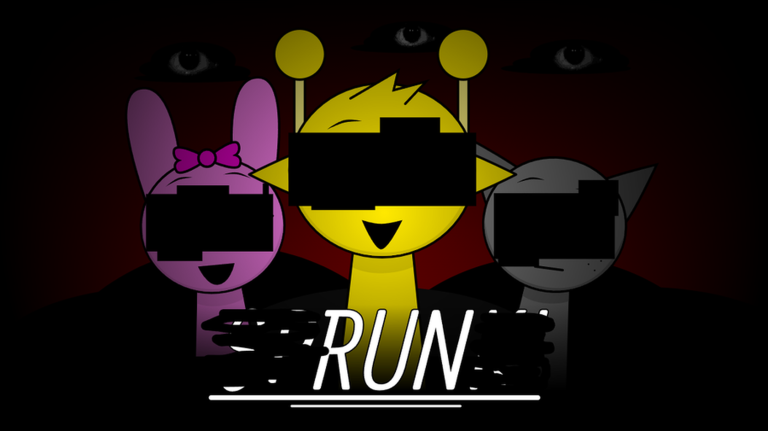
Multiple characters are available, and each one has its own sound identity. You do not have to stick with one — switching between them is part of how the game is meant to be played.
- Try every character at least once before deciding which ones you like best.
- Even a character you have used many times can produce a fresh mix if you change how you tap its elements.
- Combining sounds from different characters is one of the quickest ways to find something that surprises you.
Supporting the game
SummaryThe developers ask players to like and favourite the game on its Roblox page. Those actions help the game reach more players and signal to the team that updates are worth making.
- Like the game one click on the thumbs-up on the game's Roblox page.
- Favourite the game adds it to your favourites and raises its visibility.
Glossary
Glossary- Mix
- The finished track you build by layering multiple sounds together in the game.
- Element
- An on-screen object you tap or click to add a sound to your mix.
- Character
- One of the selectable figures in the game, each of which has its own set of sounds.
- Layering
- Stacking multiple sounds on top of each other so they play at the same time.
- Sprunki
- The original web game that Literally SPRUNKI is inspired by and based on.
Common questions
FAQCan I play this on my phone?
Yes, the game runs on mobile, PC, and console.
How do I share a mix with a friend?
Finish your mix, then find the share button on screen. The game generates mix information that you can copy and send through a chat app or post on social media. If your friend also plays the game, they can use that information to hear what you made.
Does the game cost anything to play?
The game's page does not list any paid requirements to access the music-mixing features.
Why can't I hear any sound?
Start by checking your device volume and making sure the game's own audio setting is switched on. If that does not fix it, close the game fully and reopen it, or restart the Roblox app to reset the cache.
Game updates can change what is on this page. If you spot something, get in touch and let us know.