
Scroll a Game Guide: Getting started with the feed
About
OverviewScroll a Game turns your feed into an arcade — swipe up and you drop straight into a new mini-game every time. This guide covers how to find games you enjoy, save and share your runs, build your own games, and climb the leaderboards.
What is on this page
Contents
Player notes and tips
Found a useful trick? Share it with everyone! Notes with screenshots are welcome!
Write a guide note
Scroll a Game
Getting started with the feed
Step
When you open Scroll a Game, you land on the feed — a stream of arcade games posted by other players. Swipe up to move to the next one, and keep going until something catches your eye. Every game is quick to pick up, so don't hesitate to skip anything that doesn't grab you.
- Swipe up
move to the next game in the feed
- Return to the feed
if you want to switch mid-game, go back to the feed and swipe to something new
MetaNew Player Survey
The next survey is being prepared.
Building your own game
Step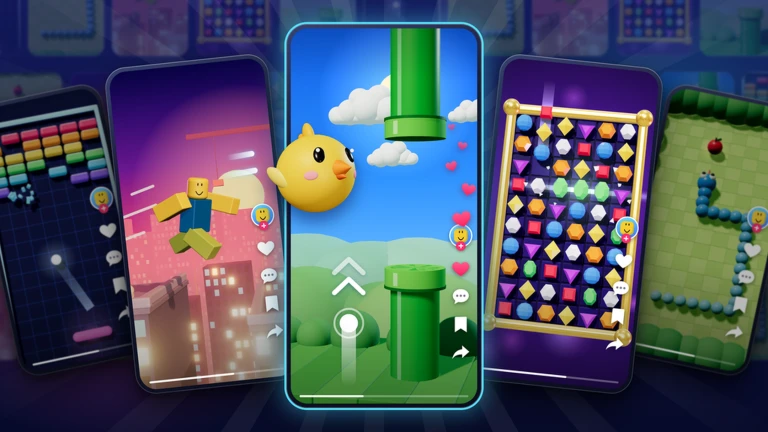
The game includes a creation mode where you design an arcade game from scratch. Once you finish building, you have to beat your own game before you can share it. After it goes live, other players can find it in the Creations tab, and you can send friends a code to jump straight to your game.
- Pick a game type
choose from obby, runner, flyer, maze, blaster, or catcher
- Choose a setting
select a world and a hero to match the feel you want
- Build it out
place blocks, enemies, traps, power-ups, and set the rules
- Beat your own game
you must complete it yourself before it can be shared
- Share it
your game appears in the Creations tab, and you can send friends a code to jump straight in
- Remix
take an existing game and reshape it into something new
Saving runs and following players
Tips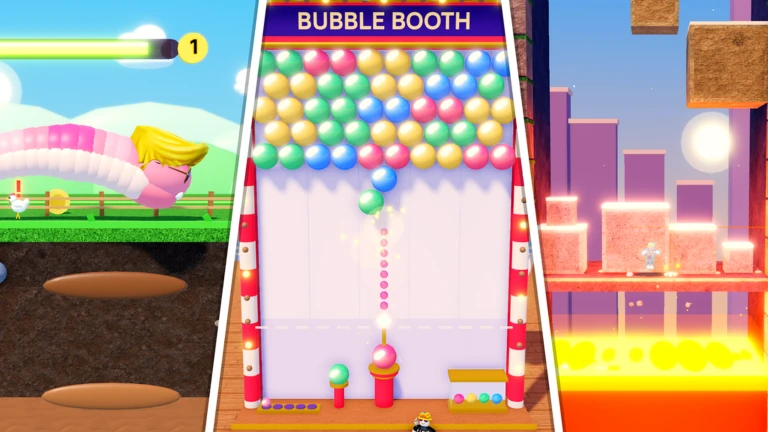
After playing any game, you have several ways to react and save what happened. Clips go to your profile, where other players can watch them.
- Like and comment on a game to leave your reaction on that post.
- Clip your best run, trim it down, and post it to your profile for others to watch.
- Follow a player to keep track of their high scores and chase them on the leaderboards.
Leaderboards and revivals
Summary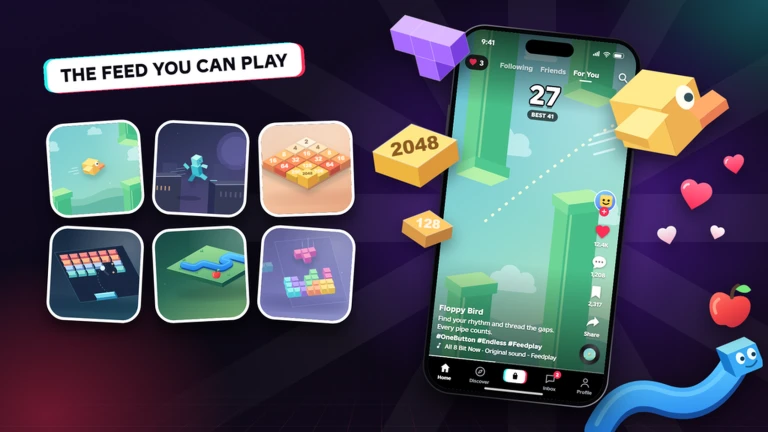
Each arcade game on the feed has its own set of leaderboards. If you fail mid-run, a revival option lets you continue instead of starting over.
- Weekly leaderboard
resets regularly
- Monthly leaderboard
longer window
- All-time leaderboard
the permanent record for each game
- Friends' scores
visible alongside the global rankings
- Revival
lets you continue after failing rather than losing your run entirely
The Maker badge
Check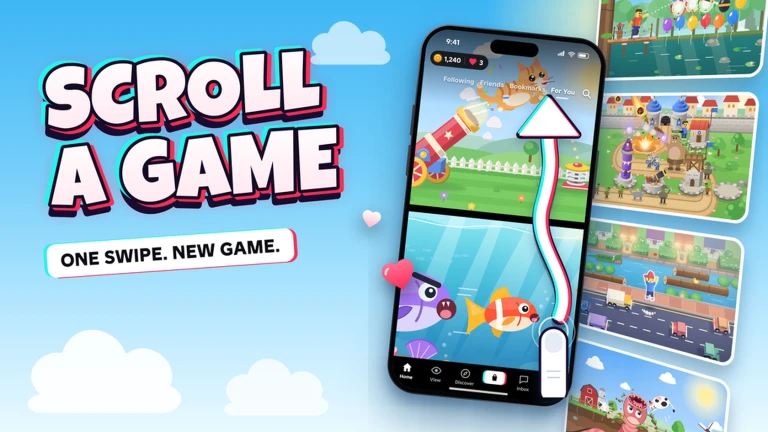
If you plan to create games, the Maker badge is the milestone to aim for.
- Build and share at least one game through the creation mode
- Accumulate 20,000 likes total across your created games to unlock the badge
Glossary
Glossary- Feed
- The main screen showing a stream of arcade games — swipe up to move from one to the next.
- Clip
- A video recording of part of your run that you trim and post to your profile.
- Creations tab
- The section of the game where player-made games are listed and can be found by anyone.
- Revival
- An in-game option that lets you continue a run after failing instead of starting from scratch.
- Remix
- Taking an existing game and editing it to make your own version.
Common questions
FAQHow do I share my game with friends directly?
Every game you create has a code you can send to friends. They enter the code to jump straight into your game without searching through the Creations tab.
Where can I watch clips I've posted?
Clips you record and post appear on your profile. Other players can visit your profile to watch them too.
Can I play on a controller?
Yes — the game supports phone, tablet, PC, and controller.
What happens if I fail during a run?
You can use a revival to keep the run going rather than losing your progress.
Game updates can change what is on this page. If you spot something, get in touch and let us know.