Draw & Slide Guide: How a round works
About
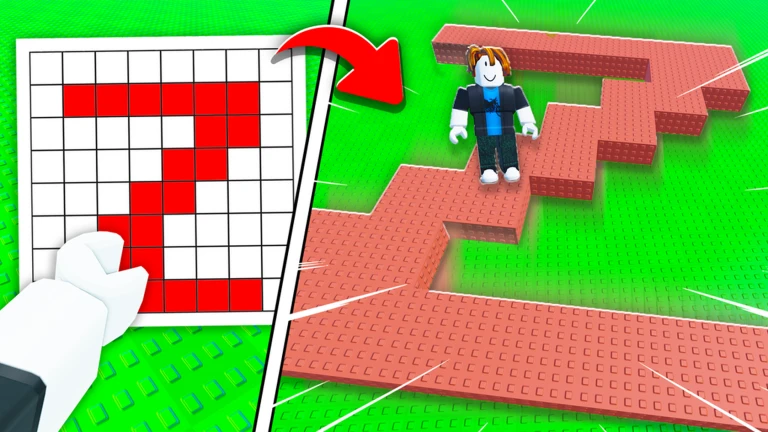
OverviewDraw & Slide is a Roblox game where you draw a path with a pen tool and then watch your character slide down it, dodging obstacles on the way to the goal. This guide covers how to draw effective routes, how to read your failures, and how to keep improving until you clear every stage.
What is on this page
Contents
How a round works
Step
When a stage loads, you draw a path from the start point to the goal using the pen tool. Once you finish drawing, your character automatically begins sliding along whatever line you made. If you reach the end without hitting an obstacle, you collect the stage reward.
- Pick up the pen open the toolbar and select the pen icon.
- Draw your route drag from the start point all the way to the goal in one connected line.
- Watch the slide your character moves on its own the moment your line is complete.
- Clear the stage reach the goal without hitting an obstacle to earn the reward.
MetaNew Player Survey
The next survey is being prepared.
Drawing a route that actually works
TipsThe shape of your line decides everything. A steep drop sends your character falling off the path, while a cramped line puts you right into obstacles. Before you draw a single stroke, take a moment to look at where the obstacles sit so you can plan around them.
- Scan the whole stage before you draw — spot every obstacle so you are not surprised mid-slide.
- Keep your angles shallow — a gradual descent is far more stable than a sharp drop.
- Draw wide curves instead of tight ones — broad arcs give you room to stay on the path.
- Redraw as many times as you need — there is no penalty for starting your line over.
Reading a failed run
CheckWhen your character does not reach the goal, something specific went wrong. Check which of the two failure types happened before you redraw, because the fix is different each time.
- Did the character hit an obstacle? Redraw that section of the path so it curves around the obstacle.
- Did the character slide off the path? Reduce the angle or widen the line at that point.
- Did movement stop partway through? Look for a sudden step or an unnatural kink in your line and smooth it out.
Pen and eraser controls
SummaryYou draw by dragging with a mouse or touch input after selecting the pen from the toolbox. If part of your line is wrong, switch to the eraser tool to delete just that section rather than clearing everything.
- Pen tool click or tap and drag to lay down a line in any shape you choose.
- Eraser tool select it from the toolbox and drag over any part of your line to remove it.
- Redraw limit none; adjust your path as many times as you like before the slide starts.
Stage rewards and retrying
TipsEvery stage has a reward waiting at the goal. Because there is no penalty for failing, you can attempt a difficult stage repeatedly until you find a route that works.
- Rewards are tied to reaching the goal — slide all the way to the end to collect them.
- Failed attempts cost nothing — retry without any setback to your progress.
Glossary
Glossary- Pen tool
- The drawing instrument you select from the toolbar to lay down your sliding path.
- Slide
- The automatic movement your character makes along the line you drew.
- Goal
- The end point of each stage; reaching it clears the stage and gives you a reward.
- Eraser tool
- A toolbar option that lets you delete part or all of your drawn line so you can redraw it.
Common questions
FAQCan I erase and redo my line?
Yes. Select the eraser tool from the toolbox and drag it over any part of your line to remove it. You can redraw as many times as you want before the slide begins.
Game updates can change what is on this page. If you spot something, get in touch and let us know.