
MIC UP 18+ Guide: First steps when you join
About
OverviewMIC UP is a voice-chat hangout on Roblox where everyone in the experience is 18 or older and spatial voice is always on. This guide walks you through getting set up, talking to other players smoothly, fixing audio problems, and staying safe while you play.
What is on this page
Contents
First steps when you join
Step
When you first load in, head straight to your profile screen to pick a nickname and set up your avatar's look. After that, open the microphone settings and check that your device has selected the right input. Run a quick audio test before you walk into any conversation — if your mic is not working, you will not know until someone tells you mid-chat.
- Set a nickname choose something easy for others to read at a glance.
- Customise your avatar adjust your look so you feel comfortable representing yourself.
- Open mic settings confirm your device has picked the correct microphone.
- Test your audio speak a few words and check the input level before joining a group.
- Find other players move toward wherever people are gathered in the space and say hello.
MetaNew Player Survey
The next survey is being prepared.
Voice chat etiquette
Tips
Because multiple people share the same audio space, background noise and cross-talk can make it hard to follow what anyone is saying. Keeping your environment quiet and your speaking style considerate goes a long way toward making the hangout work for everyone.
- Wait for the other person to finish before you start speaking.
- Speak at a calm, even volume rather than raising your voice.
- Mute your mic whenever significant background noise is happening on your end.
- Keep your sentences short in a group conversation so others can jump in.
- Greet newcomers first — a simple hello makes it much easier for both sides to open up.
Fixing audio problems
Check
If your voice is not reaching other players, or you cannot hear anyone, go through these checks in order before assuming the game itself is broken.
- Mic is not muted check that you have not accidentally hit the mute button.
- Device volume is above zero check your phone, PC, or console system volume.
- Roblox has microphone permission go into your device settings and confirm Roblox is allowed to use the mic.
- No other app is using the mic at the same time other apps grabbing the mic can block Roblox from accessing it.
- Internet connection is stable an unstable connection causes voices to cut out even when everything else looks fine.
- Rejoin if nothing else works leaving and re-entering the experience resets the audio session.
Platform options
Tips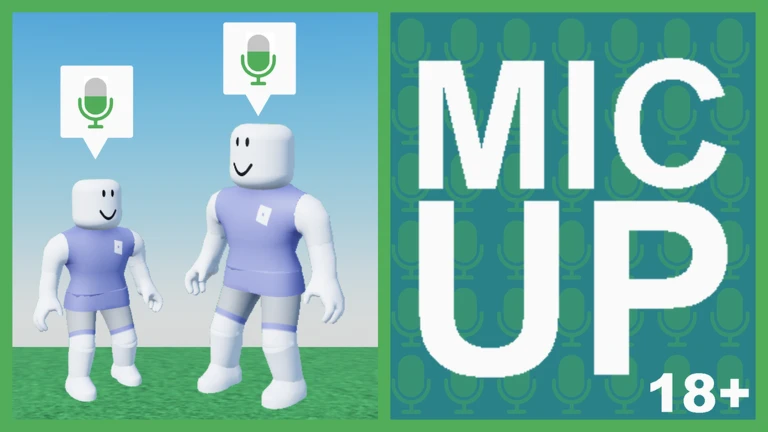
The game is built to work across a wide range of hardware.
- PC
- Phone
- Tablet
- VR
- Console
- TV and Handheld
What costs nothing
Summary
The whole point of the game is voice-based socialising, and none of that is locked behind a paywall. You can walk in, build your profile, and start talking to other players without spending anything.
- Joining and playing free with no time limit.
- Profile and avatar setup free to create and customise.
- Voice chat fully available without any purchase.
- Talking to any player no paid tier required to interact with anyone in the space.
Staying safe in a voice hangout
WarnBecause voice chat is real-time and more personal than text, it is worth thinking ahead about what you share and who you share it with. The game lets you block any player instantly, and you can report behaviour to the Roblox team through the in-game report tool. If something makes you uncomfortable, stopping and stepping away is always the right call.
Community strategy ideas
CommunityThese ideas and tips come from people playing the game. Share your discoveries too!
No strategy ideas yet. Share a tip you discovered.
Share a strategy idea
MIC UP 🔊 18+
Glossary
Glossary- Mute
- Turning your microphone off so your voice stops being sent to other players, without leaving the game.
- Avatar
- The character that represents you visually inside the game, which you can customise to look however you like.
- Block
- A tool that cuts off all interaction between you and a specific player so they cannot reach you in the game.
- Mic permission
- A setting on your device that decides whether Roblox is allowed to access your microphone at all.
Common questions
FAQCan I play without turning my mic on?
Voice chat is what the entire experience is built around, so staying muted means you will mostly just be listening. You can mute yourself or lower your speaker volume from the settings if you want to ease in gradually.
Is this game actually limited to players who are 18 or older?
The game states that everyone in the experience is 18 or older and that voice chat is always active. Keep that context in mind when choosing how to interact and what to share.
What should I do if I cannot hear anyone even after checking my settings?
Leave the experience completely and rejoin — this resets the audio session and clears most connection-level problems. If it still does not work, check whether another app on your device is currently using the microphone at the same time as Roblox.
Do I need to spend Robux to enjoy the game?
No. Joining, setting up your profile, customising your avatar, and using voice chat with any other player are all free. The core hangout experience does not require any purchase.
Game updates can change what is on this page. If you spot something, get in touch and let us know.