Elevators Guide: Getting started
About
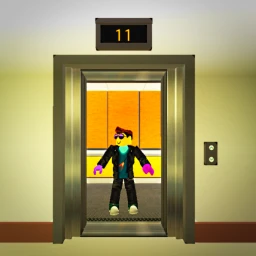
OverviewElevators lets you claim your own elevator and customize it however you want — doors, textures, sounds, size, and more. There are no enemies, timers, or goals to chase, so you can take your time and build something you're proud of. This guide walks you through getting started, building a design you actually like, and keeping things fresh once you've got the basics down.
What is on this page
Contents
Getting started
Step
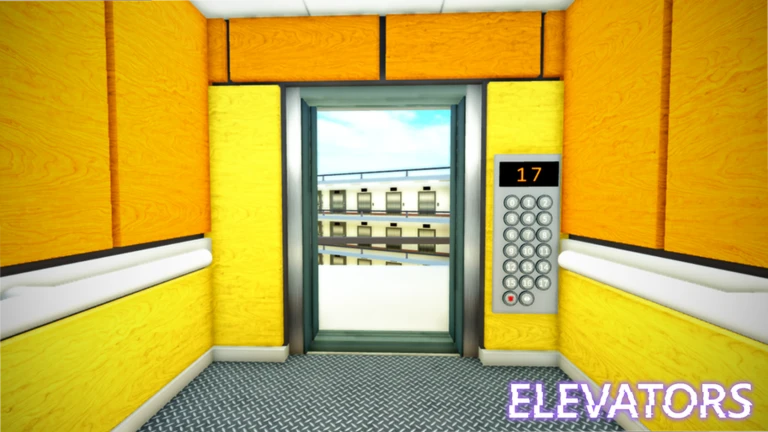
When you load in, a default elevator is already waiting for you. Before you start changing things, take a moment to look at what's there and find the customize or edit options in the menu. Knowing where everything lives saves you frustration later.
- Read any tutorial it walks you through the basic flow so nothing surprises you.
- Look at the default elevator notice which parts exist before you start swapping them out.
- Open every menu screen get a feel for the full range of things you can change.
MetaNew Player Survey
The next survey is being prepared.
The four things you can customize
CheckEach of the four customization areas does something different. Doors shape the first impression anyone gets of your elevator. Textures set the color and feel of the walls and floor. Sounds let you tweak the movement audio and alerts. Size lets you reshape the whole space from scratch, and you can always undo it if it goes wrong.
- Doors change these to make a visual difference right away.
- Textures change the color and feel of the walls and floor.
- Sounds fine-tune movement audio and alerts.
- Size you can reset it as many times as you need.
Building around a theme
TipsA free-form sandbox is easiest to work with when you have a direction in mind. Deciding on a look before you open the menus means every part you pick is working toward the same idea.
- Settle on a theme before you choose colors so nothing clashes.
- Match your texture color palette to your door choice for a more unified look.
Checking your work before you're done
CheckThe preview function shows you how your choices look before you commit, but actually riding the elevator reveals things the preview can miss. Check the door animation, listen to the sounds in context, and judge whether the size feels right once you're standing inside it.
- Use the preview the in-menu view and the real in-game view don't always match.
- Ride the elevator yourself see how the doors open and close and whether the sound fits.
- Check colors under the in-game lighting textures can look different once the room light hits them.
- Confirm the size feels right an elevator that looked fine in the menu can feel too cramped or too empty when you're actually in it.
When something isn't working
WarnIt's easy to end up with a mix of parts that don't sit well together, especially if you've been changing several things at once. The reset function brings everything back to the default state so you can start clean.
Staying interested over time
TipsOnce your first elevator is finished, there's nothing stopping you from building a second or third with a completely different look. Changing up colors by season or experimenting with styles you haven't tried yet are both easy ways to find new things to enjoy.
- Build a second elevator with a different theme — retro, futuristic, fantasy — rather than reworking your first one.
- Swap colors seasonally to give an existing elevator a fresh feel without rebuilding it from scratch.
Glossary
Glossary- Customize
- The act of changing your elevator's doors, colors, sounds, or size to match the look you want.
- Texture
- The color, pattern, or surface feel applied to your elevator's walls and floor.
- Preview
- A function that shows you how your changes will look in-game before you finalize them.
- Reset
- An option that wipes your customization choices and returns the elevator to its original default state.
- Default
- The standard elevator the game gives you before you've changed anything.
Common questions
FAQDo I need to spend Robux to get good customization options?
All the core customization elements — doors, textures, sounds, and size — are available without spending anything. You can build a fully personalized elevator without any purchases.
What should I do if my design looks messy and I can't figure out why?
Try undoing your most recent changes one at a time to find which part broke the look. If that doesn't help, use the reset option to go back to the default and start fresh with a clear theme in mind.
Game updates can change what is on this page. If you spot something, get in touch and let us know.