
MIC UP — Getting your microphone ready
About
OverviewMIC UP is a social hangout game built around spatial voice chat, where you explore a city-style world and roleplay with other players using your microphone. This guide walks you through getting your mic working, finding your footing in the world, playing safely, and fixing common audio problems.
What is on this page
Contents
Getting your microphone ready
Step
Voice chat is the whole point of MIC UP, so the first thing to do is make sure your mic is actually working. The in-game settings menu lets you test your microphone before you talk to anyone. On phones and tablets, you also need to give the Roblox app permission to use the mic through your device's system settings. Check that your speaker volume is audible too, not just your mic.
- Check your mic open the in-game settings and confirm your headset or built-in mic is being picked up.
- Grant app permission on mobile, go to your device system settings and allow Roblox to access the microphone.
- Adjust levels set mic sensitivity and speaker volume to a comfortable balance inside the game settings.
- Run a quick test say something and confirm the audio is coming through before you walk up to other players.
First things to do when you spawn in
CheckWhen you enter the game, you are already sharing a space with other players. The game uses a proximity voice system, so you only hear people who are physically close to your character. Wandering the city and its buildings early on is the best way to learn what locations are available. If you are meeting friends, agree on a meeting spot before you both load in.
- Walk up to someone nearby and say hello to confirm your voice is reaching other players.
- Explore the city and buildings to learn where different spots are.
- If friends are joining you, pick a landmark to meet at so you are not searching the whole map.
Proximity voice — how it shapes conversations
Table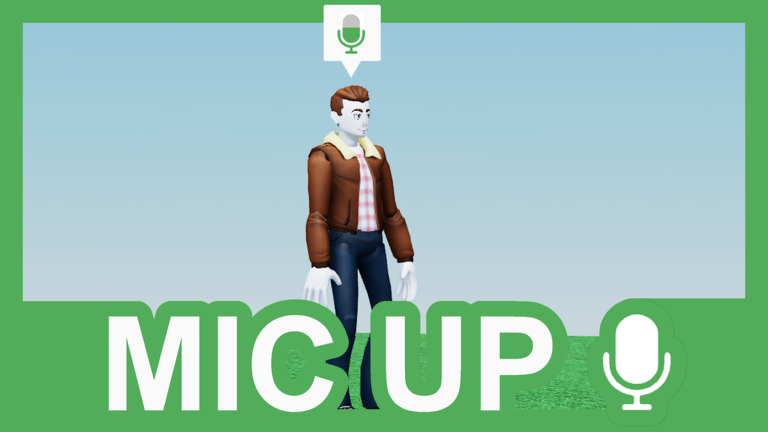
MIC UP uses a proximity voice system rather than a global chat, which means distance matters. This changes how you approach every conversation in the game.
| Nearby player | their voice comes through clearly. |
| Far-away player | their voice does not reach you at all. |
| Moving closer | the way to start a conversation with someone new. |
| Moving away | the natural way to end a conversation or find privacy. |
Making roleplay work
Tips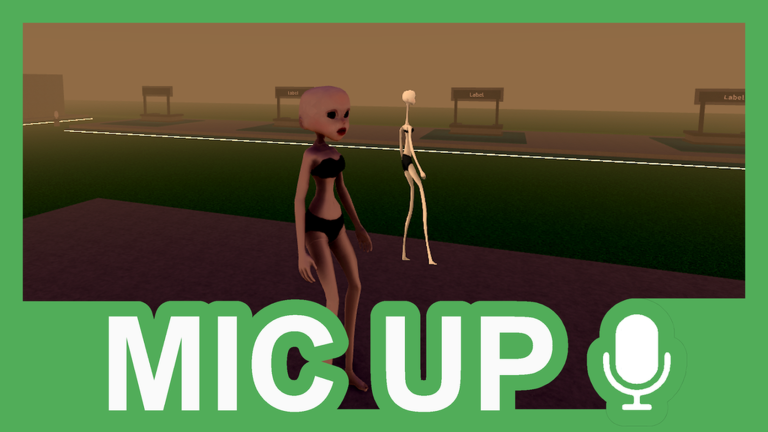
The city setting gives you plenty of room to create your own stories with other players. Running a shop, living out school life, or going on an adventure are all open to you. Speaking through your mic pulls other players in far more than silence does, even if you only say a few words.
- Decide on a background for your character before you start a scene so you have something to work from.
- Building a story with several players at once leads to surprising directions you would not reach alone.
- A calm, clear voice makes other players more comfortable starting conversations with you.
- Close the gap — step toward whoever you want to talk to so the proximity system actually picks both of you up.
Staying safe with voice chat
Warn
Because MIC UP is built on real-time voice, other players can hear you directly. That makes it more important than ever to protect your personal information. If someone makes you uncomfortable, the game gives you tools to deal with it without leaving.
Fixing microphone problems
Step
If your voice is not coming through, or you cannot hear anyone, work through these steps in order before assuming something is seriously wrong. Restarting the app clears most problems that a settings check does not.
- Check the selected device if you have more than one microphone connected, confirm the right one is active in the settings.
- Check volume levels make sure neither mic sensitivity nor speaker volume is set to zero.
- Restart the app close Roblox completely and reopen it.
- Restart your device a full reboot resolves most issues that survive an app restart.
Playing across different devices
SummaryMIC UP runs on PC, phone, tablet, VR, console, handheld, and TV, and players on all of them share the same game world. That means you and a friend can be on completely different devices and still hear each other fine. The catch is that each device has its own mic setup, so switching devices means revisiting your audio settings.
Glossary
Glossary- Proximity voice
- A system where you only hear players whose characters are physically close to yours in the game world.
- Voice chat
- Real-time audio communication through your microphone that lets you talk directly to other players.
- Roleplay
- Playing as a character and building a story together with other players rather than following a fixed game objective.
- Avatar
- Your character's appearance in the game, which you can customise with different outfits and accessories.
- Mic sensitivity
- A setting that controls how easily your microphone picks up sound — higher means quieter sounds get captured, but background noise increases too.
Common questions
FAQWill my avatar and progress still be there next time I log in?
Yes — your avatar customisation and progress are saved to your account. Everything will be waiting for you the next time you open the game.
Can phone and PC players be in the same world at the same time?
Yes, all supported platforms connect to the same game world. A player on a phone and a player on PC can meet up and voice chat with each other without any extra steps.
What if I do not want to interact with strangers?
You are never forced to talk to anyone. You can stick to areas of the map with fewer people, or arrange to play only with friends you already know so the session stays private.
Game updates can change what is on this page. If you spot something, get in touch and let us know.