
Pop It Trading Guide: How a trade works from start to finish
About
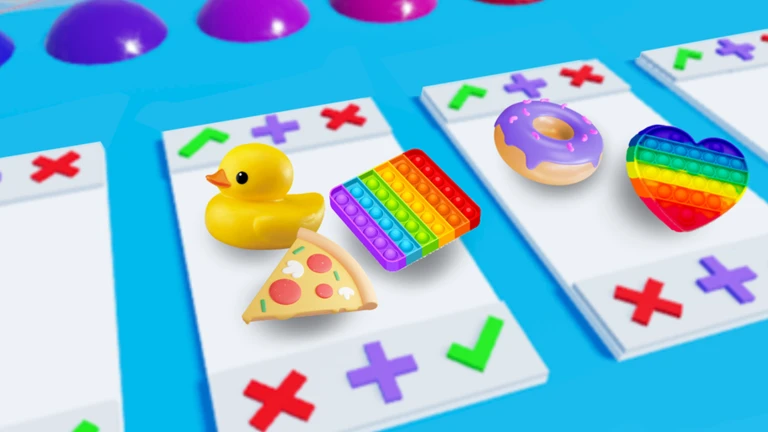
OverviewPop It Trading is a Roblox collecting and trading game where you gather items — including Pop Its — and swap them with other players at trading boards. This guide covers how to get started, how to carry out a trade step by step, what every button on the board does, how to manage your money, and how to stay safe while playing.
What is on this page
Contents
Player notes and tips
Found a useful trick? Share it with everyone! Notes with screenshots are welcome!
Write a guide note
Pop It Trading ✨
How a trade works from start to finish
Step
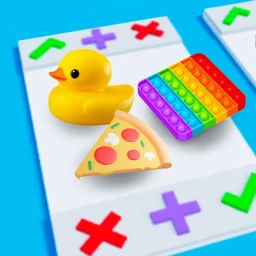
Trading only happens at a trading board. You and the other player both need to be standing at the same board, and you both need to place your items on your own side before either of you confirms. Once the items are down, take a moment to check what the other player has actually put out — then, only if you are happy with it, jump on the green check on your side. The trade goes through only when both of you have done that.
- Stand at the board
both you and the other player need to be at the same trading board.
- Place your items
put the items you are offering onto your side of the board.
- Check what they are offering
look at the name, appearance, and quantity of every item on their side.
- Jump on the green check
if you are satisfied, jump on your green check button to confirm.
- Verify what you received
once the trade completes, open your inventory to make sure everything arrived.
MetaNew Player Survey
The next survey is being prepared.
What each board button actually does
Table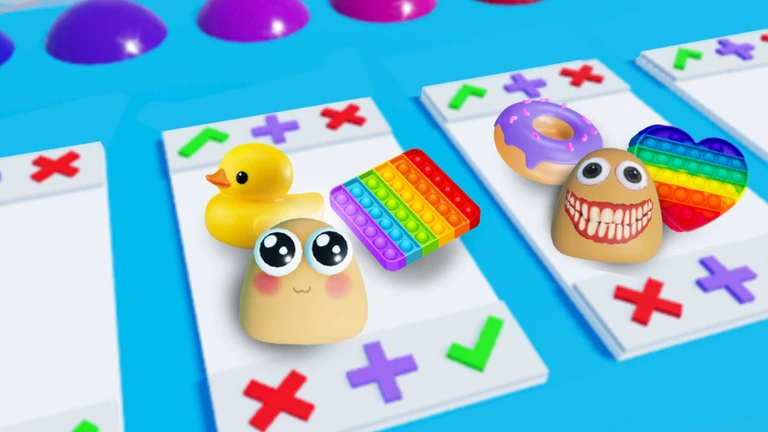
There are three buttons on every trading board, and mixing them up is one of the most common mistakes new players make. If the other player ignores a plus request, you can either accept the current items by jumping on the green check or cancel with the red X and find a different trading partner.
| Green check (✅) | confirms you agree to the current items on the board and seals the trade when both players jump on it. |
| Plus (➕) | sends a request asking the other player to add more items; nothing changes automatically. |
| Red X (❌) | cancels the trade immediately with no items changing hands. |
Reading your money correctly
CheckThe leaderboard shows three different numbers, and they are easy to confuse. Total includes both your spendable cash and the estimated value of everything in your inventory added together. When you go to buy something, look at Cash specifically — that is the only amount the shop will accept.
- Cash your spendable in-game money; this is what the shop draws from.
- Inventory the estimated value of all the items you are currently holding.
- Total Cash plus Inventory combined; this is not all available to spend.
- Selling items turning items you no longer need into Cash is one way to build up your spending balance.
Protecting yourself from bad trades
Warn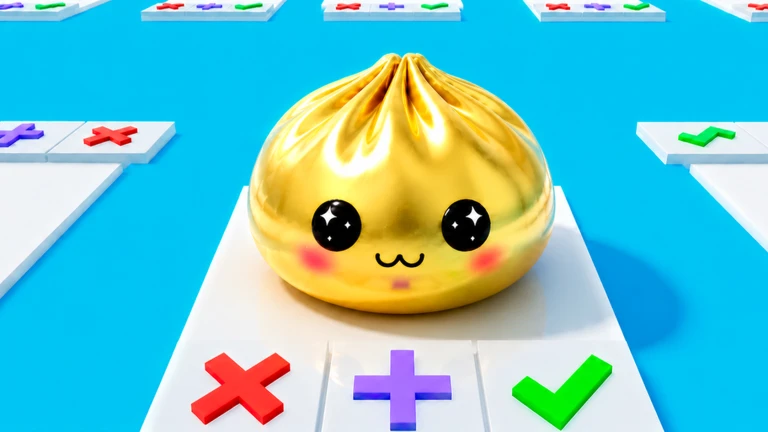
Some players will try to swap items out at the last second, rush you into agreeing before you have read the board, or promise rare items later in exchange for something now. None of those situations are worth trusting. If you feel pressured or confused, hitting the red X and walking away costs you nothing.
Saturday admin events
TipsEvery Saturday, the game's admins run a special event. Free items are given out, mini-games appear, and the session plays differently from a normal trading day. The exact start time is announced inside the game, so check there when you log in on Saturdays.
- Events run every Saturday and are hosted by the game's admins.
- Free items are handed out during events.
- Mini-games appear on Saturdays.
- Check in-game announcements for the exact start time each week.
 knocknock
catnap
pizzeria
resolutions
75K Cash Item
Glossary
Glossary- Trading board
- The in-game station where two players stand face-to-face, place their items, and confirm a swap — trades can only happen here.
- Inventory
- The collection of all items you currently own, viewable from the leaderboard screen.
- Cash
- Your spendable in-game currency, separate from the value of your items, and the only figure the shop accepts.
- Total
- The combined sum of your Cash and the estimated value of your Inventory — not all of it can be spent.
- Selling
- Exchanging an item for Cash rather than swapping it for another item — a separate action from trading.
Common questions
FAQI jumped on the green check but nothing happened — why?
A trade only completes when both players confirm. Check that the other player is still at the same board, that items are placed on both sides, and that they have also jumped on their own green check.
I pressed the plus button but the other player did not add anything — what do I do?
The plus button only sends a request; the other player is free to ignore it. If they choose not to add more, you can either accept the current items by jumping on the green check or cancel with the red X and find a different trading partner.
What happens to my items if the other player cancels the trade?
When either player hits the red X, the trade is called off immediately and no items move between inventories. Everything you placed on the board returns to you, so nothing is lost.
Up to how many players can be in one room at the same time?
Up to 22 players can be in a single room, which means there are plenty of potential trading partners around you at any given time.
What time do Saturday events start?
The exact start time is not set in advance — it is announced inside the game each week. Log in on Saturday and check the in-game announcements to find out when the event begins.
Does the Total on the leaderboard show how much I can spend in the shop?
No. Total adds your Cash and the estimated value of your Inventory together, but only the Cash portion can actually be spent. Always look at the Cash figure specifically before you try to buy something.
Game updates can change what is on this page. If you spot something, get in touch and let us know.