LINE UP! Metro Tycoon Guide: Your first connection
About
OverviewLINE UP! Metro Tycoon is a Roblox management game where you draw railway lines between stations, carry passengers, and grow your income to build a bigger network. You start in a city of your choice — Tokyo is the natural first stop — and gradually expand your railway empire to cities across Korea, Japan, Hong Kong, the United States, and beyond. This guide walks you through your first connection, upgrading stations, keeping your trains running, and moving around the map.
What is on this page
Contents
Player notes and tips
Found a useful trick? Share it with everyone! Notes with screenshots are welcome!
Write a guide note
LINE UP! Metro Tycoon
Your first connection: Tokyo to Kanda
Step
When the game loads, you pick a country and then a city. Choosing Japan puts you in Tokyo, where an on-screen guide walks you through connecting Tokyo Station to Kanda Station. The connection is made with a drag — click or tap Tokyo Station, hold, slide to Kanda Station, and release. Once the segment opens, the railway line appears on the map and your cash balance in the bottom-left corner begins to climb.
- Pick country and city select Japan, then Tokyo from the opening screen.
- Read the guide the on-screen instructions explain the Tokyo-to-Kanda connection.
- Drag to connect press Tokyo Station, hold, and drag to Kanda Station before releasing.
- Watch your balance money starts accumulating in the bottom-left corner as soon as the line opens.
MetaNew Player Survey
The next survey is being prepared.
What to do when the connect button is greyed out
CheckBefore you try to open a new segment, compare the cost shown on the connection screen with your current balance in the bottom-left corner. Your existing lines keep earning while the connection menu is open, so leaving it up and waiting is a perfectly valid strategy. If your balance already covers the cost but the button is still inactive, look for any additional conditions listed on that same screen.
- Check the cost the connection screen displays exactly what the segment will cost.
- Check your balance your current cash sits in the bottom-left corner of the screen.
- Wait with the menu open running lines continue earning even while you have the connection screen up.
Levelling up a station
StepTap or click any open station on the map and a panel appears showing the station name, its current level, and a Level Up button. Before pressing it, note the upgrade cost and the level cap. After the upgrade goes through, glance at your remaining balance to see how much you have left for your next connection.
- Select the station tap or click it on the map to open its panel.
- Review the cost note the price and the level cap before doing anything else.
- Press Level Up the button only works if your balance covers the cost.
- Check what is left confirming your remaining cash tells you how soon you can afford the next segment.
Train condition and repairs
Tips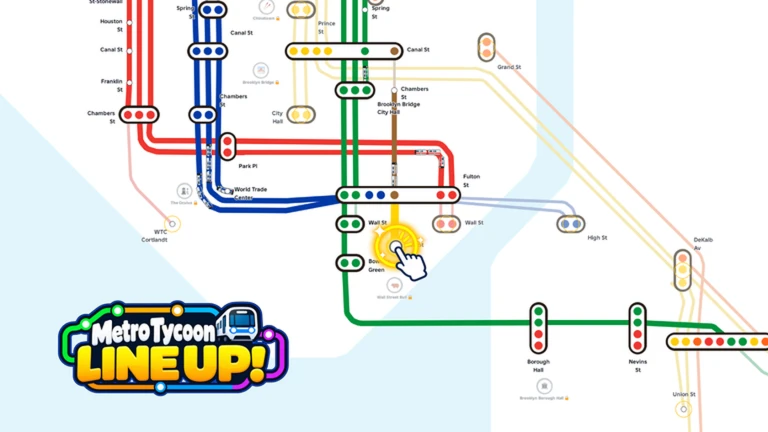
Your trains are not managed from the station panel. Open the train menu at the bottom of the screen and go to Train Fleet, which is the vehicle management screen. Inside, a stat called Train Condition shows the health of your fleet as a percentage. If repairs are needed, check the cost first, then hit Repair All.
- Open Train Fleet from the train menu at the bottom of the screen — not from any station panel.
- Train Condition shows your fleet's health as a percentage inside the Train Fleet screen.
- Check the repair cost before tapping Repair All.
- Station upgrades and train repairs are handled in completely separate menus.
Riding trains and switching maps
TipsSelecting a moving train brings up a blue Board button — press it to ride along. When you want to get off, press the red Get Off button. If you have wandered into another player's map, the My Map button switches you straight back to your own network.
- Select a moving train, then press the blue Board button to ride it.
- Press the red Get Off button whenever you want to leave the train.
- While viewing another player's map, press My Map to return to your own network.
Currency differences between cities
WarnEach city uses its own currency — Tokyo runs on yen, New York on dollars. If the numbers on your screen look nothing like a guide video you watched, the difference is the city. Always use the figures on your own screen when deciding whether you can afford an upgrade or connection.
Glossary
Glossary- Drag
- The action of pressing and holding on a station, moving your finger or mouse to another station, and releasing — this is how you draw a new line segment.
- Train Fleet
- The vehicle management screen, opened from the train menu at the bottom of the screen, where you check Train Condition and run repairs.
- Train Condition
- A percentage shown inside the Train Fleet screen that tells you how healthy your fleet currently is.
- Landmark
- A building or structure you construct to develop your city, separate from stations and railway lines.
- Level Up
- The button on a station's panel that spends cash to raise that station to the next level, up to its cap.
Common questions
FAQWhy do the money amounts in videos look completely different from mine?
The currency changes depending on which city you are playing in — Tokyo uses yen while New York uses dollars. A video recorded in a different city will show totals in a different currency, so the numbers will not match yours. Focus on your own screen's balance and the cost shown in the connection menu.
Can I actually ride a train while it is moving?
Yes. Tap or click a train that is already running and a blue Board button will appear. Press it to get on, and press the red Get Off button when you want to leave.
How do I get back to my map after looking at someone else's?
Press the My Map button while you are viewing the other player's network and you will switch straight back to your own.
Do my lines keep earning money while I have menus open?
Yes — running lines continue generating income even when the connection screen is open. This means you can leave the connection screen up while you wait for your balance to reach the amount you need.
Game updates can change what is on this page. If you spot something, get in touch and let us know.