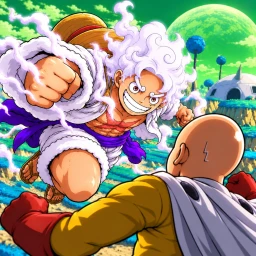
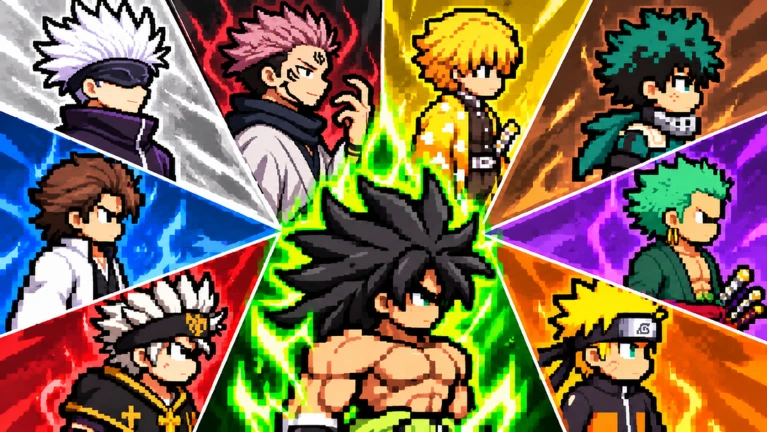
Anime vs Anime! is a Roblox fighting game where you collect over 140 anime-style fighters and battle in 1v1 or 2v2 matches. You can control your fighter yourself or let Auto Fight handle the action.
Found a useful trick? Share it with everyone! Notes with screenshots are welcome!
Write a guide note
[RIMURU!] Anime vs Anime!
01
Getting through the tutorial
Step
In shortFinishing the tutorial hands you a free God Pack.
When you first load in, five fighters are shown to you — pick whichever one looks interesting, then follow the on-screen prompts to try out each move. Complete the whole tutorial and you receive a free God Pack to open.
Pick a fighterchoose any one of the five shown.
Try each movefollow the on-screen cues and use each ability as prompted.
Finish the tutorialreach the end to unlock the God Pack reward.
Open the God Packcheck what fighter you got and look at their moves.
In shortAlways check which currency a pack costs before you try to open it.
New fighters come from packs, which you access through the Summon button on the left side of the screen or by walking up to a summon spot in the lobby. The pack list refreshes on a timer, so if the pack you want is not showing, check the countdown at the top of the list and wait for the next rotation.
Worth watching out for
Check the icon next to the pricesome packs cost coins, others cost emeralds.
If a pack asks for Robux, check with a parent or guardian before proceeding.
Note the refresh timer at the top of the pack list so you know when new packs cycle in.
03Live and upcoming eventsEvents
Events running now or coming soon. They have fixed dates, so check them first.
Live now –
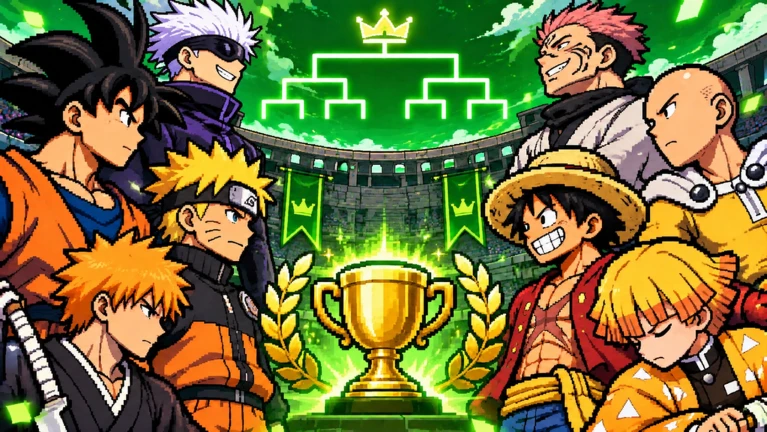
8 PLAYER TOURNAMENT!!!
Instead of our usual 4 player tournaments, we will now be adding 8 player tournaments where you can go up against 7 oth…
Live now –
NEW FIGHTER ARTS!!!
All 146 fighters will be getting a art rework, the art will be much better, and will be consistent throughout all fight…
In shortAuto Fight lets you watch how moves work; manual control puts every decision in your hands.
Both modes are available at any time. Auto Fight is useful for watching a new fighter's moves land naturally. Losing on Auto Fight is a signal to switch to manual and take a closer look at what is going wrong.
Auto Fight
lets you watch how moves connect without worrying about timing.
Manual control
puts every decision in your hands, rewarding practice over time.
Losing on Auto Fight
a signal to switch to manual and take a closer look at what is going wrong.
05
Using Training before a real match
Check
In shortTraining lets you test a fighter's moves safely before a live match.
Training lets you test a fighter's moves safely, with no match on the line. Any time you get a new fighter from a pack, run through these checks before queuing up.
Rangetest whether each move hits only up close or also reaches across a distance.
Cooldownsuse the same move twice in a row and watch the on-screen timer to see how long you have to wait.
06
Bot difficulty and why wins stop coming
Tips
In shortBots get harder every five wins, so a sudden losing streak is not necessarily your fault.
Bots are computer-controlled opponents. As of October 27, 2026, every five wins you earn causes the bots to step up in difficulty.
Tips worth knowing
If attacks are suddenly missing, go back to Training and recheck your move ranges.
If a move will not come out, confirm the cooldown has finished and check the control display.
When Auto Fight keeps losing, switch to manual with the same fighter to see what the bot is doing.
Change only one thing at a time — swapping both your fighter and your control mode at once makes it hard to tell what actually helped.
07
Choosing between 1v1 and 2v2
Table
In short1v1 has one opponent; 2v2 has two opponents and a teammate.
Both modes are available. The main difference is how much you need to track at once.
1v1
one opponent, easy to see exactly which of your moves landed and which missed.
2v2
two opponents and a teammate, so you need to watch more of the screen at the same time.
08
Redeem codes
Step
In shortCodes expire and each one can only be used once, so enter them carefully and promptly.
The game supports redeem codes. Enter them in the code entry screen inside the game.
Find the input screenopen the code entry screen inside the game.
Type carefullycodes are case-sensitive, so match every capital and lowercase letter exactly.
Use it oncea code becomes invalid after one use or when it expires, whichever comes first.
A pack that contains fighters, given free at the end of the tutorial and also available through the summon screen.
Auto Fight
A setting that lets your fighter act on their own without any input from you.
Bot
A computer-controlled opponent whose difficulty increases every five wins you earn.
Cooldown
The wait time after using a move before you can use that same move again.
Emeralds
A currency used to open certain packs, separate from regular coins.
Key bindings
Settings for which keyboard keys perform which actions; changes are saved and carry over when you move to a new server.
Common questions
FAQ
Can I switch to a different fighter after the tutorial?
The fighter you pick during the tutorial joins your roster. After the tutorial ends you receive a God Pack, and any fighter you get from that can be used instead.
Why can't I open a pack even though I have coins?
Some packs require emeralds rather than coins. Check the icon displayed next to the pack's price to confirm which currency it needs.
Do my control settings carry over when I join a different server?
As of October 27, 2026, any changes you make to your key bindings are saved and carry over when you move to a new server.
Is the game finished?
The game is currently in beta, so bugs can appear. Major changes and reworks are pushed every few days.
Updated Nov 6, 2026
Game updates can change what is on this page. If you spot something, get in touch and let us know.

 Live now
–