
Conquest: Napoleonic Wars Guide: Selecting your units
About
OverviewConquest: Napoleonic Wars is a real-time strategy game set in the Napoleonic era where you command soldiers on a shared battlefield with up to 50 players at once.
What is on this page
Contents
Selecting your units
Step
Everything starts with picking which soldiers you want to control. You can grab a single unit, a group, or every soldier on the field depending on what the situation calls for.
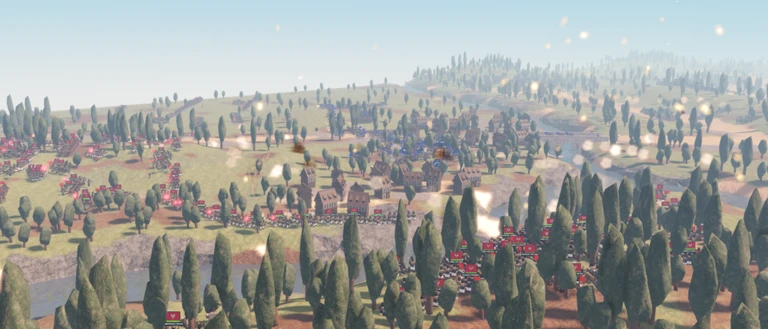
- Drag to select click and drag across the battlefield to pull every unit inside the box into your selection.
- Add more hold Shift and drag again to add soldiers to whatever you already have selected.
- Select all press Q to instantly select every unit you have on the field.
- Select by type hold Shift and click any unit to grab all soldiers of that same type at once.
- Select by type with a number key hold Shift and press a number key to select all units sharing that type.
- Deselect all press E to clear your current selection and start fresh.
MetaNew Player Survey
The next survey is being prepared.
Moving and positioning troops
Step
Once you have units selected, a single click sets their destination.
- Formation spread hold Shift and click to send each selected unit to its own position instead of stacking them all on one point.
- Line formation press T, then click a destination to automatically arrange your units into a line as they move.
- Match march speed press H to toggle all selected units moving at the same pace so nobody outpaces the group.
- Halt press C to stop your selected units where they stand.
- Rotate press R to turn selected units and face them in a new direction.
- See all destinations hold Left Control to view every unit's current goal on the map without changing your selection.
- Add a unit without losing selection hold Left Control and click a unit to add it while keeping everything already selected.
Battlefield awareness tools
Tips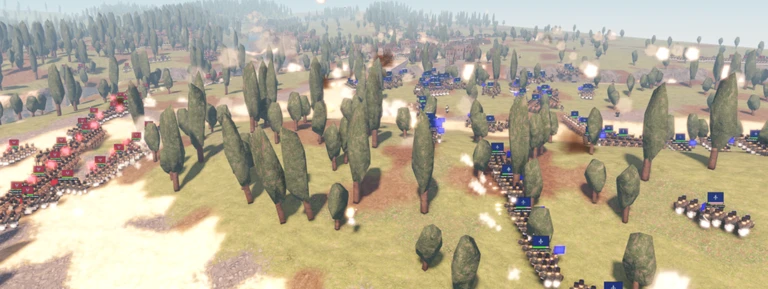
These keys give you information and coordination on the battlefield.
- Press Z to show the attack range of your selected units.
- Press X to send a ping to your teammates, marking a spot on the battlefield for coordination.
- Hold Left Control at any moment to see where every unit on your side is headed, even ones you have not selected.
Private server settings and the unstuck command
Check
If you rent a private server, you can adjust the game's rules through a settings panel opened right from the chat. There is also a recovery command if your character ever freezes.
- Type /private in chat to open the server settings panel on your own private server.
- Type /private again, or close the panel, to dismiss it.
- Type /unstuck in chat if your character can no longer move, and it will be freed.
Glossary
Glossary- Unit
- A group of soldiers that moves together toward a single destination on the battlefield.
- Attack range
- The distance within which a unit can engage enemies, shown on screen when you press Z.
- Ping
- A map marker sent to your teammates by pressing X to signal a location without typing.
- March at same speed
- A toggle (H key) that locks all selected units to a matching pace so the group stays together.
Common questions
FAQHow many players can fight on the same battlefield?
Up to 50 players can share the same server.
My character is stuck and will not move — what do I do?
Type /unstuck in the chat and your character will be freed.
How do I keep from accidentally deselecting units when I want to add one more?
Hold Left Control and click the unit you want to add. It joins your current selection without dropping the others.
Game updates can change what is on this page. If you spot something, get in touch and let us know.