
Speed Draw Guide: How a round works

About
OverviewSpeed Draw! is a competitive multiplayer drawing game where every player races to finish artwork on a shared theme, then votes on each other's work using a star rating. This guide walks you through the controls, drawing techniques, and voting system so you can get the most out of every round.
What is on this page
Contents
Player notes and tips
Found a useful trick? Share it with everyone! Notes with screenshots are welcome!
Write a guide note
Speed Draw!
How a round works
Step
When you join a session, the game gives everyone the same theme to draw. You use the tools on the left toolbar to build your artwork before the timer runs out. Once drawing ends, your piece is uploaded and the voting phase begins. After everyone has rated each other's work, a new round starts with a fresh theme.
- Read the theme
figure out exactly what you want to draw before touching the canvas.
- Pick your tools
choose from the toolbar on the left to get started.
- Work fast
the clock runs the whole time, so dive in immediately.
- Vote
rate every other player's artwork with stars.
- Repeat
a new theme kicks off the next round right after voting closes.
MetaNew Player Survey
The next survey is being prepared.
Controls and canvas navigation
CheckOn desktop, keys 1 through 7 switch between the available drawing tools instantly. If you are on mobile, tap the tool you want on the touchscreen instead. Zoom in with the mouse wheel or a pinch gesture to work on fine details. To pan across the canvas, click and drag while no tool is selected — on mobile, just drag with no tool active.
- Keys 1–7 are mapped to the drawing tools on desktop.
- Pinch to zoom in and out on a touchscreen.
- Mouse wheel controls zoom on desktop.
- Drag with no tool selected to move the camera.
- Z undoes your last stroke; Y redoes it.
Drawing tools and techniques
Tips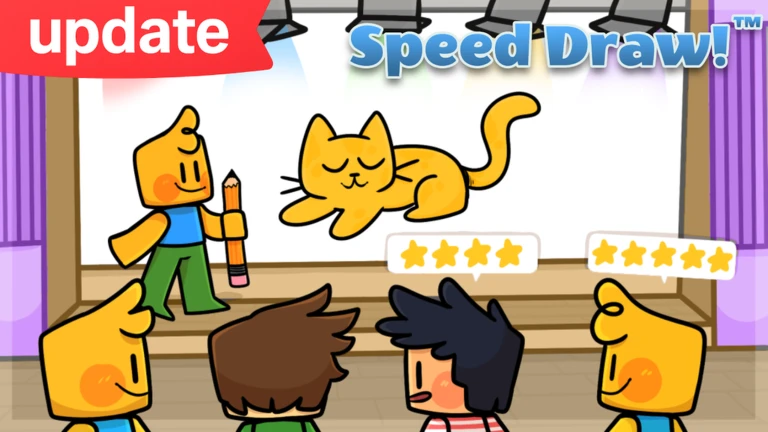
The game gives you several tools to work with, and a couple of features that help you draw cleaner and learn faster. The stabilizer in particular is worth turning on early — it smooths out shaky lines, which makes a real difference when you are drawing quickly under pressure.
- The Stabilizer Tool works with Brush and Watercolor
activate it with the wrench icon to get steadier lines.
- Check the Gallery after a round finishes to see what the previous round's drawings looked like and pick up ideas.
The voting system
Summary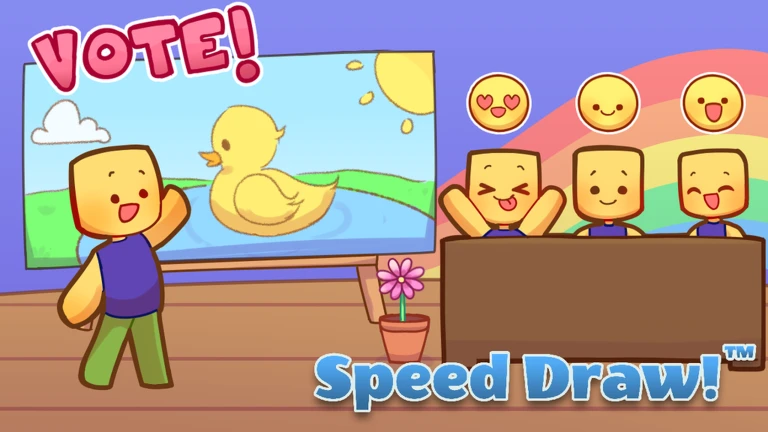
After the drawing phase ends, you can see every player's artwork and rate what you see. The updated system means nobody walks into the vote already ahead — every piece starts at one star. Players who earn the most stars from their peers are rated highest at the end of the round.
- Starting position
every drawing begins at one star.
- Your job
add stars to any artwork you think deserves them.
- What wins
the drawings that collect the most stars from all voters.
- Round end
high-star finishers are recognized, then a new theme begins.
Private servers and custom themes
Table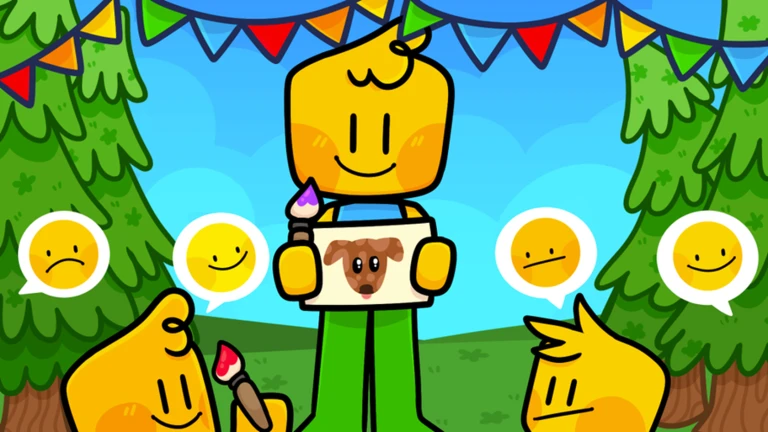
Public sessions hold up to twelve players, which is more competition and more artwork to rate. Private servers keep it to just the people you invite. One useful perk of private servers is that custom themes are available for free, so your group can decide what everyone draws instead of getting a random prompt.
| Public server size | up to twelve players. |
| Private server access | friends only. |
| Custom themes | free in private servers. |
Tips for scoring higher
TipsBeyond that, the Gallery is a free lesson after every round.
- Decide on your composition the instant you see the theme
don't sketch aimlessly while time drains.
- Use the Stabilizer whenever you need a clean edge or a smooth curve.
- After each round, open the Gallery and look at drawings that scored well to spot techniques you can try.
Glossary
Glossary- Theme
- The prompt every player in the round draws — it is the same for everyone and changes each round.
- Stabilizer Tool
- An optional setting for the Brush and Watercolor tools that smooths out hand movement so your lines come out cleaner.
- Gallery
- A feature that lets you view the drawings made in the previous round, useful for learning from other players.
- Voting phase
- The period after drawing ends when players rate each other's artwork with stars.
- Custom theme
- A player-chosen prompt available in private servers, replacing the random theme used in public sessions.
- Private server
- A session you host for your own group of friends, separate from the public matchmaking pool.
Common questions
FAQCan I play Speed Draw! on my phone?
Yes — the game fully supports touchscreens. You tap to select tools, pinch to zoom, and drag with no tool selected to move around the canvas.
How does the voting stay fair?
Every drawing enters the voting phase with one star, so no artwork has a head start. From there, players add stars based on what they genuinely think of each piece.
What can I do in a private server that I cannot do in a public one?
Private servers let you play with only the friends you invite, and they give your group access to custom themes for free so you can pick what everyone draws.
How do I undo a stroke I don't like?
Press Z to undo your last action and Y to redo it.
Game updates can change what is on this page. If you spot something, get in touch and let us know.