FACEPAINTING! UGC CREATOR Guide: Keyboard shortcuts for every tool
About
OverviewFACEPAINTING! UGC CREATOR is a Roblox tool that lets you draw a custom face design in-game and upload it directly to Roblox as a UGC item your avatar can wear across every game. This guide walks you through the tools, the upload process, and the rules you need to follow to get your design approved.
What is on this page
Contents
Player notes and tips
Found a useful trick? Share it with everyone! Notes with screenshots are welcome!
Write a guide note
FACEPAINTING! UGC CREATOR 🖌️
Keyboard shortcuts for every tool
Table
Every drawing and editing action in the game has a dedicated key. Keep this table open while you get started.
| Key | Tool | What it does |
|---|---|---|
| V | Pencil | Draws thin, precise lines for fine detail |
| B | Brush | Paints broader strokes over larger areas |
| A | Airbrush | Applies color softly for blended or transparent effects |
| E | Eraser | Removes paint from any area |
| S | Smudge | Blends colors and edges together |
| G | Bucket Fill | Floods a large area with one color at once |
| Q | Eyedropper | Picks a color already on the canvas |
| R | Select | Isolates a region so only that area is edited |
| L | Shape | Draws circles, rectangles, and other basic shapes |
| M | Move | Repositions a painted element after placing it |
| F | Reflect | Mirrors a painted element |
| C | Scale | Resizes a painted element larger or smaller |
| T | Rotate | Turns a painted element to a different angle |
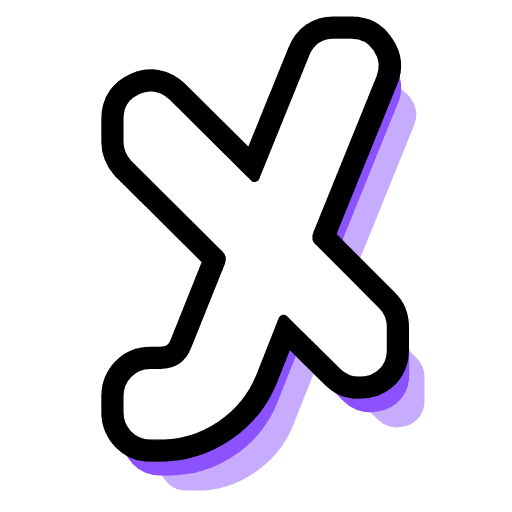
| X | Toggle Symmetry | Switches mirror drawing on or off |
| D | Toggle Lasso / Axis Lock | Switches between freeform selection and locked-axis drawing |
| N | Toggle Alpha Lock | Locks the transparent areas so paint stays within existing strokes |
| [ | Decrease Brush Size | Makes the active brush tip smaller for finer work |
| ] | Increase Brush Size | Makes the active brush tip larger for faster coverage |
MetaNew Player Survey
The next survey is being prepared.
Features that speed up symmetrical faces
Tips
Faces are naturally symmetrical, so the tools below are worth switching on early rather than copying strokes by hand.
- Press X to turn on Symmetry — anything you paint on one side of the face appears on the other side at the same time.
- Press X again to turn Symmetry off whenever you want to paint just one side freely.
- Use the Select tool (R) to isolate a specific region before editing so you don't accidentally paint over areas you've already finished.
- Use the Shape tool (L) to drop in clean circles or rectangles.
- Tap [ or ] to change brush size on the fly.
Uploading your finished design
Step
Once you are happy with the design, the game sends it to Roblox. The share code it generates is the same as the item's catalog ID, so anyone you give it to can find your face.
- Finish painting your design.
- Run the upload use the in-game upload option to send the design directly to Roblox.
- Wait for moderation Roblox reviews every submission to check it follows their Terms of Service before it can be worn.
- Share the code once approved, the game gives you a share code (which matches the catalog ID) that other players can use to find your face.
- Wear it anywhere an approved design appears in your Roblox inventory and works as an avatar item across all games.
Rules that affect whether your design gets approved
Warn
The game itself asks you to check your designs against Roblox's Terms of Service before uploading.
What costs Robux and what does not
Summary
The core toolset is fully free to use.
- Painting tools free, all of them
- Uploading a design to Roblox free
- In-game purchases add items to your Roblox inventory but are not required to paint or upload
- Selling your uploaded UGC not possible regardless of spending
Glossary
Glossary- UGC
- User-Generated Content — in this game, a face design you create and upload that becomes a real Roblox avatar item.
- Share code
- A code tied to your uploaded face design; it is the same number as the item's Roblox catalog ID, and giving it to someone lets them find your design.
- Decal
- An image you import into the game to use as a reference or background layer while you paint.
- Symmetry
- A toggle (X key) that mirrors every stroke you make so both sides of the face are painted at the same time.
- Alpha Lock
- A toggle (N key) that stops paint from going outside the edges of strokes you have already placed.
- Lasso mode
- A freeform selection mode that lets you draw an irregular boundary around the area you want to edit; toggled with the D key.
Common questions
FAQDoes uploading a design cost Robux?
No. The painting tools and the upload feature are both free to use. In-game purchases exist but are not required to create or upload a design.
Can I sell my uploaded face design?
No. UGC uploaded through this game cannot be put on sale. You can share it with others using the share code, but selling it is not allowed.
Where can I wear an approved design?
Once Roblox's moderation approves it, the face appears in your Roblox inventory and can be worn as an avatar item in every Roblox game.
How do I draw without the symmetry mirror effect?
Press X to toggle Symmetry off. With it off, strokes only appear where you actually paint, giving you full freehand control.
Why does my imported decal look blurry?
Decals smaller than 512x512 pixels lose quality when the game loads them. Resize your image to 512x512 before importing it.
Game updates can change what is on this page. If you spot something, get in touch and let us know.